DroidDeck Controller Support Guide: Gamepads on Android
By Elena Rodriguez, PC Gaming Analyst
Contents On this page
PC games were designed for controllers and keyboards, not touchscreens, so a gamepad transforms DroidDeck from a novelty into a serious way to play. Most modern Bluetooth controllers pair with Android in seconds and work in DroidDeck with minimal setup. This guide covers pairing, mapping and the practical tips that separate a good session from a frustrating one. Pair it with the DroidDeck APK install from the official DroidDeck download page and you are ready.
Pairing your controller
Put the controller in pairing mode, open your phone's Bluetooth settings, and select it from the available devices. Xbox-style and PlayStation-style controllers from the last two console generations pair reliably with modern Android phones. Once paired at the system level, DroidDeck picks the controller up automatically the next time you launch a game.
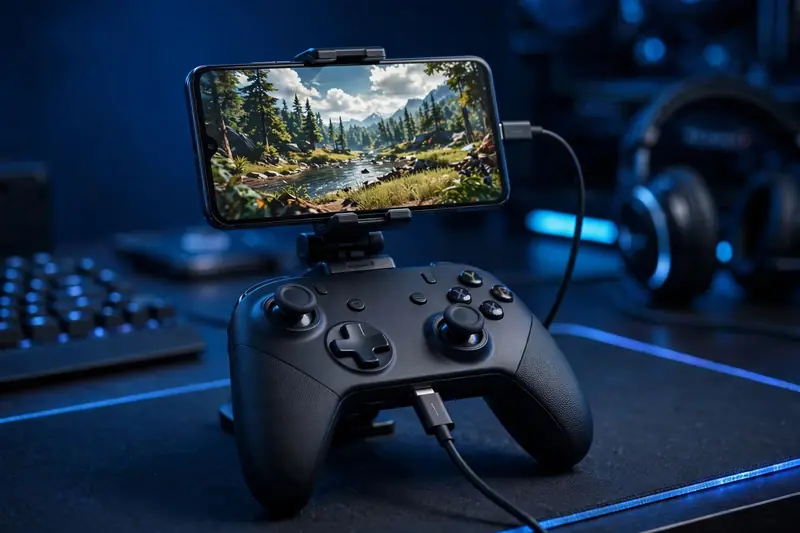
For the lowest latency, a USB-C wired connection beats Bluetooth every time. Wired play eliminates wireless interference entirely, which matters for timing-sensitive genres like fighting games and rhythm titles. A short USB-C cable plus a phone clip turns your setup into a surprisingly capable handheld. Keep Bluetooth for convenience and wired for anything competitive.
Button mapping that actually works
Most games recognize standard controller layouts immediately through Steam Input, which maps your physical buttons to the game's expected Xbox-style layout. When a game does not respond correctly, check Steam Input settings for that title before assuming the controller is broken; the fix is usually selecting the right template rather than remapping every button by hand.
Build one comfortable mapping per genre and reuse it. Platformers, shooters and racing games each have conventional layouts your muscle memory already knows from console play. Resist the urge to heavily customize until you have played for a few hours; stock layouts are stock for a reason, and most discomfort in the first session is unfamiliarity, not bad mapping.
Touch controls as a fallback
DroidDeck includes on-screen touch controls for sessions without a gamepad. They work best for turn-based games, point-and-click adventures and anything playable with a mouse, where precision timing does not matter. For action games, touch controls are a stopgap: playable for short sessions, tiring for long ones.
Customize the touch layout per game if you rely on it. Moving the virtual sticks to match your thumb reach and enlarging the buttons you press most often makes a bigger difference than it sounds. Still, treat touch as the backup plan. A twenty-dollar Bluetooth gamepad improves action games more than any settings tweak ever will.
Fixing controller problems
- Controller not detected: unpair and re-pair in Android Bluetooth settings, then relaunch the game. Detection happens at launch for most titles.
- Wrong button layout: open the game's Steam Input settings and switch templates before remapping manually.
- Input lag: move closer to the phone, turn off other Bluetooth devices nearby, or switch to a wired USB-C connection.
- Double inputs: this usually means both Steam Input and the game are processing the controller. Disable one of the two input layers.
- Disconnects mid-game: check the controller's battery and exempt DroidDeck from aggressive Bluetooth power saving in your phone settings.
If problems persist across multiple games, test the controller in a native Android game first. That isolates whether the issue is the controller and phone or something specific to DroidDeck's input stack, which makes any further troubleshooting or community help request much more productive. Once input works, tune each game with our DroidDeck performance settings guide; general game issues beyond input are covered in the DroidDeck troubleshooting guide.
The one purchase that matters: If you buy a single accessory for DroidDeck, make it a decent Bluetooth gamepad. It improves action games more than a phone upgrade would, and it costs a fraction of one. Everything else is optional.