DroidDeck Multi-Store Login Guide: GOG, Epic and Amazon Games in v0.4.0
By Elena Rodriguez, PC Gaming Analyst
Contents On this page
Version 0.4.0 expands DroidDeck beyond Steam: you can now sign in with GOG, Epic Games and Amazon Games and play those libraries natively on your phone too. If you have claimed years of free weekly games on other storefronts, this update unlocks a backlog you forgot you owned. This guide walks through linking each store, explains where the games land, and fixes the sign-in hiccups people hit most. Grab the latest build from the official DroidDeck download page first, since older versions do not have multi-store login at all. If you are new to DroidDeck entirely, start with the DroidDeck install guide first. The DroidDeck APK homepage lists what is new in each release.
What v0.4.0 actually adds
The update adds native login flows for three additional storefronts alongside Steam. Once linked, each store's library appears in DroidDeck and its games install and launch through the same Proton and FEX translation layers as Steam titles. You manage one app, one set of performance settings and one storage pool, regardless of where you bought the game.
This matters because many PC gamers have large secondary libraries they never touch. Years of free game giveaways mean the average Epic account alone holds dozens of unplayed titles, and GOG's DRM-free catalog is full of classics that run beautifully on phone hardware. Version 0.4.0 turns those dormant libraries into a portable collection.
Linking each store step by step
- Open it, go to the library or accounts section, and choose Add store.
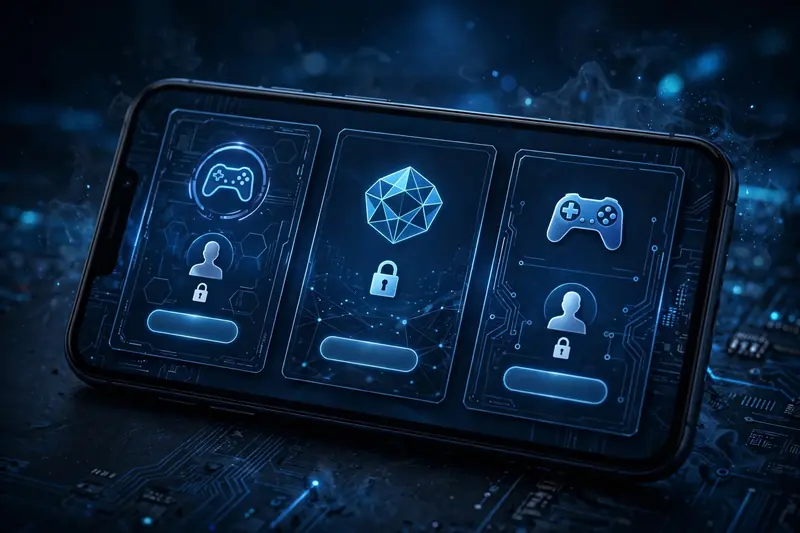
- Pick GOG, Epic Games or Amazon Games. A secure browser window opens with that store's real login page.
- Sign in with your normal credentials and complete any two-factor check the store requires.
- Approve the connection when asked. DroidDeck stores a login token, not your password.
- Repeat for each additional store. Your libraries merge into one browsable list, with a small badge showing each game's source store.
Use the official login pages only. DroidDeck opens the real storefront authentication in a proper browser view; if you ever see a login form that looks off or arrives via an unexpected prompt, stop and restart the linking flow from inside the app. Credential safety matters more here than anywhere else, since these accounts hold purchases worth real money.
Installing and launching store games
Once linked, installation works like Steam: browse the store's library inside DroidDeck, pick a game, download it over Wi-Fi and press Play. GOG games deserve a note because they are DRM-free, which makes them especially phone-friendly: no additional license checks, no background services, just the game. Many GOG classics are also small and old enough to run flawlessly on minimum-spec hardware.
Epic and Amazon Games titles go through their respective license checks on first launch, so keep a connection handy for that initial start. Afterward, most single-player games run offline like everything else. If a game refuses to launch with a license error, the fix is usually to open it once more while online so the store can refresh its token, then try again.
Troubleshooting sign-in problems
The most common failure is the login browser window closing before authentication finishes. This usually happens when your phone's battery optimization kills the browser view in the background. Exempt your browser and DroidDeck from battery optimization, then retry the linking flow from the start.
Two-factor codes deserve patience: request one code and wait. Requesting several in a row invalidates the earlier ones, and entering an expired code looks exactly like a broken login. If a store keeps rejecting a correct password, sign in on the store's website in your regular browser first to clear any security challenge, then link inside it. For persistent issues, unlink and relink the store rather than reinstalling the whole app; your downloaded games survive an unlink. Broader login and license failures are covered in our DroidDeck troubleshooting guide.
Link order tip: Link Steam first, then add GOG for its DRM-free classics, then Epic and Amazon for your giveaway backlog. Test one small game from each store before downloading anything large, since license behavior differs slightly per storefront.